
Creating a New Company
Ready Pay allows you to add any number of companies and their data, depending on the terms of your license.
To help you create a new company, Red Pay provides a wizard to guide you through the required steps.
Upon completion of the wizard you will require a Company License Key (also known as a CLK or activation key) to activate the company.
Charges do not normally apply as long as there are sufficient employee licenses available for all employees across all companies.
To Obtain a CLK:
It is best to obtain a CLK before creating the new company. To do this you can print and complete a registration form from the license area. Email this to support@hr3.com.au and await an activation key which will normally be sent on the same business day. Alternatively please call our support team to provide you with the CLK.
To Create a New Company:
- From the navigator select Company Definitions > Create New Company.
A pop up window will as you to confirm you wish to create a new company: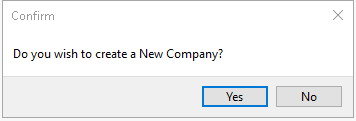
- After clicking Yes, the company creation wizard will open and take you through a step-by-step process.
- Follow the steps through from 1-13.
- Do not cancel out of the wizard until you have completed the Company Creation wizard to the last step.
 Before starting the process of creating a company the wizard checks to see if there are any inactive companies. If the company that you want to create shows up as inactive, it means that it has previously been created, however its license has not been activated using the CLK or the creation wizard was terminated somewhere between steps 8-13. You will need to complete the missing steps and enter the CLK to activate the company.